

How to Choose the Right Industrial Display Screen?
Choosing an Industrial Display Screen is not simply a matter of picking the brightest panel or the largest size. The right choice depends on where the display will operate, what information it must show, and how people will interact with it. A screen beside a production line faces different demands from one installed in a control room.
Start with the environment. Dust, vibration, moisture, temperature swings, and direct sunlight can all affect performance. A display mounted near a washdown area may need a sealed enclosure, while a sunlit station may require higher brightness and an anti-glare surface. These details matter. So does the viewing angle: an operator should be able to read an alarm without leaning across equipment.
Then consider the practical specifications. Resolution should suit the content, not just look impressive on paper. Check touch requirements, available interfaces, operating-system compatibility, mounting options, and expected duty cycle. Confirm the manufacturer’s environmental ratings and support details against your actual installation conditions. A rating alone does not guarantee suitability in every setup.
There is no universal best screen. Trade-offs are real. Higher brightness may increase power use, and a feature-rich model can add cost without helping the workflow. It is worth reviewing how operators will use the display during a full shift, including with gloves or under changing light. A little uncertainty is normal; installation conditions are not always perfectly predictable. This guide explains how to compare key factors and choose an Industrial Display Screen that fits the job, rather than merely its specification sheet.
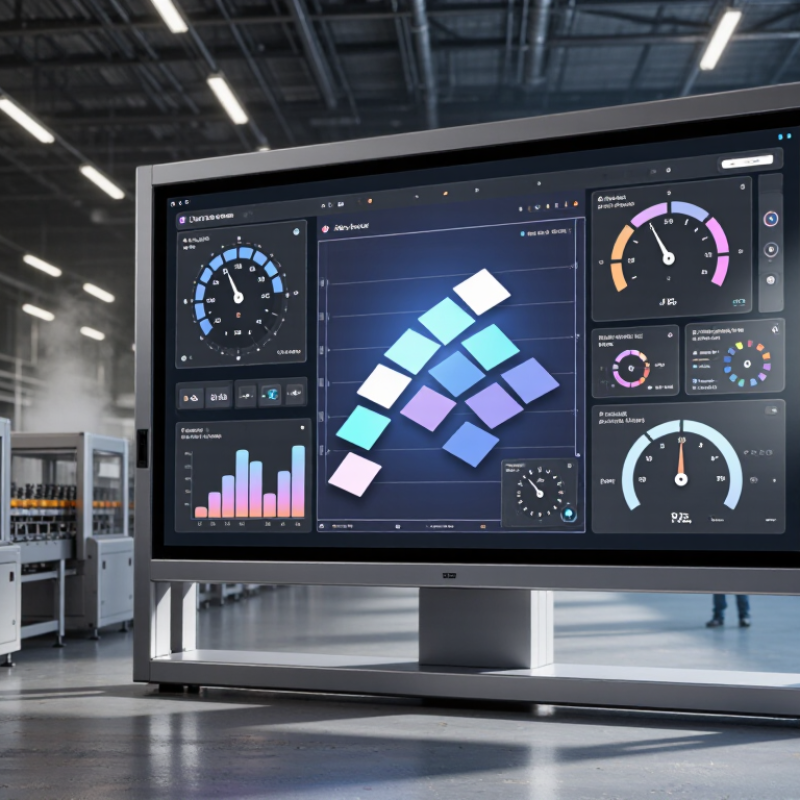
Define the Industrial Display’s Role and Operating Requirements
Before comparing screen sizes or resolutions, define what the display must do. Will it show a live production dashboard, guide an operator through setup, or let a technician adjust machine settings? Start at the machine. Note who reads the screen, from what distance, and while doing which task. A status panel viewed from two meters needs different text and contrast than a close-up setup screen. Dust matters. So do oil mist, washdowns, vibration, and temperature swings. Record the actual conditions near the mounting point, not just the factory’s average room temperature.
Then test the operating details. Can workers use the interface with gloves? Does sunlight strike the screen at a particular hour? How many hours will it stay on each day, and must it remain readable during a power interruption? Check required inputs, communication interfaces, mounting space, and cable routing before choosing a panel. A brighter display may help near a window, but it can add heat and power use. It is easy to over-specify brightness and miss glove response or viewing angle. That is a useful mistake to catch on paper. Ask operators to try a sample screen at the real workstation, with its normal lighting and protective equipment. Their feedback may expose assumptions that a specification sheet cannot.
How to Choose the Right Industrial Display Screen?
Define the display’s role and operating requirements. The chart shows indicative brightness levels for different viewing environments; actual needs depend on ambient light, viewing angle, and screen reflections.
Typical planning guidance, not a universal specification: confirm brightness, temperature range, touch requirements, and enclosure rating against the installation conditions.
Compare Screen Technologies, Sizes, Resolutions, and Brightness
How to Choose the Right Industrial Display Screen?
Compare Screen Technologies, Sizes, Resolutions, and Brightness
Start with the environment, not the screen’s headline specifications. TFT LCD screens suit many control panels because they offer stable, crisp images and broad size options. OLED delivers deep blacks and strong contrast, but static interface elements can increase image-retention risk over time. For a fixed console, a 10.1-inch, 1280 × 800 panel provides about 149 pixels per inch—enough for legible menus without demanding a large graphics system. Check viewing distance, glove use, and whether operators need to read fine text at an angle. A spec sheet can still mislead.
Brightness matters most near windows or outdoors. VESA’s DisplayHDR specification sets a 1,000 cd/m² peak-brightness threshold for its DisplayHDR 1000 tier. That is a useful comparison point, not proof of sunlight readability: glossy covers and reflections can wash out an image. Look for an anti-glare surface, strong contrast, and brightness controls. In a dim control room, excessive brightness can cause eye strain. Test the display under the actual lighting conditions, if possible.
Tips: Match resolution to the information shown; more pixels are not always more useful. Measure the panel opening before ordering. Check touch response with the gloves operators actually wear, and confirm that cables leave enough room behind the enclosure. One detail is easy to miss: the best choice may be less bright, but easier to read all day.
Assess Environmental Conditions and Required Ruggedness
An industrial display should be chosen for the conditions around it, not just its screen size or resolution. Record the expected temperature range, humidity, dust, washdown exposure, vibration, and direct sunlight. A panel beside a packaging line may face fine powder, oily fingerprints, and repeated cleaning. Dust gets everywhere. Check the specified operating temperature and ingress protection rating, but match them to the actual installation; a rating alone does not guarantee suitability for every cleaning method.
Tips: Inspect the enclosure seams and cable entry points. Ask whether the touchscreen works with gloves and stays readable under the site’s lighting. For outdoor or high-heat areas, check brightness and thermal limits. Water finds seams. Confirm details in the technical documentation rather than relying on a sales description.
Ruggedness also depends on mounting and daily use. A vibrating machine can loosen a poorly supported panel, while a recessed screen may trap heat or grime. Consider protective glass, impact resistance, and whether the unit can be serviced without dismantling nearby equipment. In practice, the toughest specification is not always the best fit. I would leave some margin for temperature and vibration, then verify the choice in the intended location; real conditions can be messier than a checklist.
| Operating Environment | Main Environmental Risks | Recommended Display Features | Useful Ratings or Tests | Selection Guidance |
|---|---|---|---|---|
| Clean indoor control room | Long operating hours, ambient light, occasional dust | Industrial-grade panel, suitable brightness for room lighting, reliable cooling, and a serviceable mounting design | Confirm the manufacturer’s specified operating temperature and service-life conditions | A high ingress-protection rating may not be necessary if the display is installed in a clean, dry enclosure. |
| Dusty workshop or production floor | Airborne dust, metal particles, and debris entering the enclosure | Sealed front surface, protected connectors, and an enclosure selected for the actual dust exposure | IEC 60529 IP5X indicates dust-protected ingress; IP6X indicates dust-tight construction | Check the complete installed assembly, including cable entries and mounting seals, rather than relying only on the front-panel rating. |
| Washdown or splash-prone area | Water splashes, cleaning sprays, and moisture around seams or controls | Sealed bezel, suitable gasket materials, corrosion-resistant exposed surfaces, and protected connectors | IEC 60529 IPX5 covers water jets under specified test conditions; IPX6 covers more powerful water jets | Match the rating to the cleaning method. A water-jet rating does not automatically mean the display is suitable for hot, high-pressure, or chemical cleaning. |
| Temporary immersion risk | Accidental submersion or flooding | Fully sealed enclosure and connectors designed for the intended immersion conditions | IEC 60529 IPX7 is tested for temporary immersion under specified conditions, typically up to 1 m for 30 minutes | Verify the exact test conditions and installation requirements; IPX7 does not by itself establish suitability for continuous underwater use or water jets. |
| Outdoor installation | Sunlight, rain, temperature changes, condensation, and ultraviolet exposure | High-brightness, sunlight-readable screen; optical bonding where appropriate; UV-resistant materials; and thermal management | Check the specified operating-temperature range and applicable ingress-protection rating | Assess direct-sunlight readability and heat buildup in the final enclosure, not just the panel’s nominal brightness. |
| Cold storage or unheated facility | Low start-up temperatures, condensation, and temperature cycling | Panel and touch components rated for the expected operating range, with condensation control where required | Review operating and storage temperature specifications separately | Confirm that the display can start and respond to touch at the site’s minimum temperature; storage limits are not operating limits. |
| Hot machinery area | Elevated ambient temperature, radiant heat, and restricted airflow | Wide-temperature components, heat-tolerant enclosure, and a cooling strategy suited to the installation | Check the rated operating-temperature range and any derating notes | Allow for heat from nearby equipment and the display itself; enclosure temperature can exceed room temperature. |
| Mobile equipment or machinery with vibration | Continuous vibration, intermittent shock, and loosening of mounting hardware | Secure mounting, vibration-resistant connectors, strain-relieved cables, and a mechanically supported panel | Look for relevant IEC 60068-2-6 vibration and IEC 60068-2-27 shock test information | Compare test profiles, mounting orientation, and duration with the actual application; a test reference alone does not guarantee suitability. |
| Areas with electrical interference | Electromagnetic interference from motors, drives, or switching equipment | Industrial EMC design, appropriate grounding, shielded cabling, and separation from noise sources | Review applicable EMC immunity and emissions test documentation for the intended installation | Follow the display and equipment wiring guidance, especially for cable routing and grounding. |
| Public-facing or frequently touched station | Repeated touch input, accidental impact, and cleaning | Durable cover glass, touch technology suited to the users’ gloves and workflow, and a cleanable front surface | Check the specified impact, touch, and chemical-resistance information | Test touch accuracy with the actual gloves, screen protector, and cleaning products used on site. |
Check Interfaces, Mounting Options, and Touchscreen Needs
Industrial display selection starts with the equipment it must connect to. List each signal source, controller, and cable before comparing screens. HDMI or DisplayPort may suit a nearby computer, while serial interfaces can matter for older control systems. Confirm connector type, signal format, and cable distance; a matching socket alone does not guarantee compatibility. Leave room for power and data plugs, too. A tight enclosure can make routine replacement awkward.
Mounting affects both installation and service access. Check panel cutout dimensions, VESA patterns, and the screen’s depth behind the surface. In a vibrating machine, a secure mount and suitable strain relief help prevent cables from loosening. Touchscreen needs depend on the work: gloved operators may need a touch technology tested with their actual gloves. Water droplets, dust, and repeated taps can also change usability. I have seen specifications look convincing on paper, then feel less certain at the workstation.
Tips: Bring sample cables and gloves to a fit test. Check viewing angle, touch response, and access to ports. Small details matter.
Evaluate Reliability, Maintenance, and Total Cost of Ownership
An industrial display earns its place through steady operation, not a bright specification sheet. Consider the actual setting: a dusty workshop, a vibrating machine, or a control room running around the clock. Check the operating temperature range, sealing, vibration resistance, and expected service life. Treat lifetime estimates as planning data, not guarantees.
Maintenance affects uptime and labor costs. Look for front access, replaceable components, clear fault indicators, and connectors that are easy to reach. Ask how cleaning affects the touchscreen and whether staff can use it with work gloves. A cable routed behind a fixed panel may turn a small repair into a long stoppage. Surprises still happen.
Compare total ownership costs over the expected service period, not just the purchase price. Include energy use, installation, spare parts, service visits, and the cost of production delays. For example, a less expensive screen may need more frequent replacement or take longer to repair. A tidy spreadsheet can still miss an awkward mounting position or a hard-to-source component. Keep realistic records of failures and maintenance time; those details make estimates more useful.